How to Generate JIRA Tickets from Meeting Recordings
Turn meeting recordings into structured JIRA tickets with AI: automatic transcription, task extraction, assignees, due dates, and calendar integration.
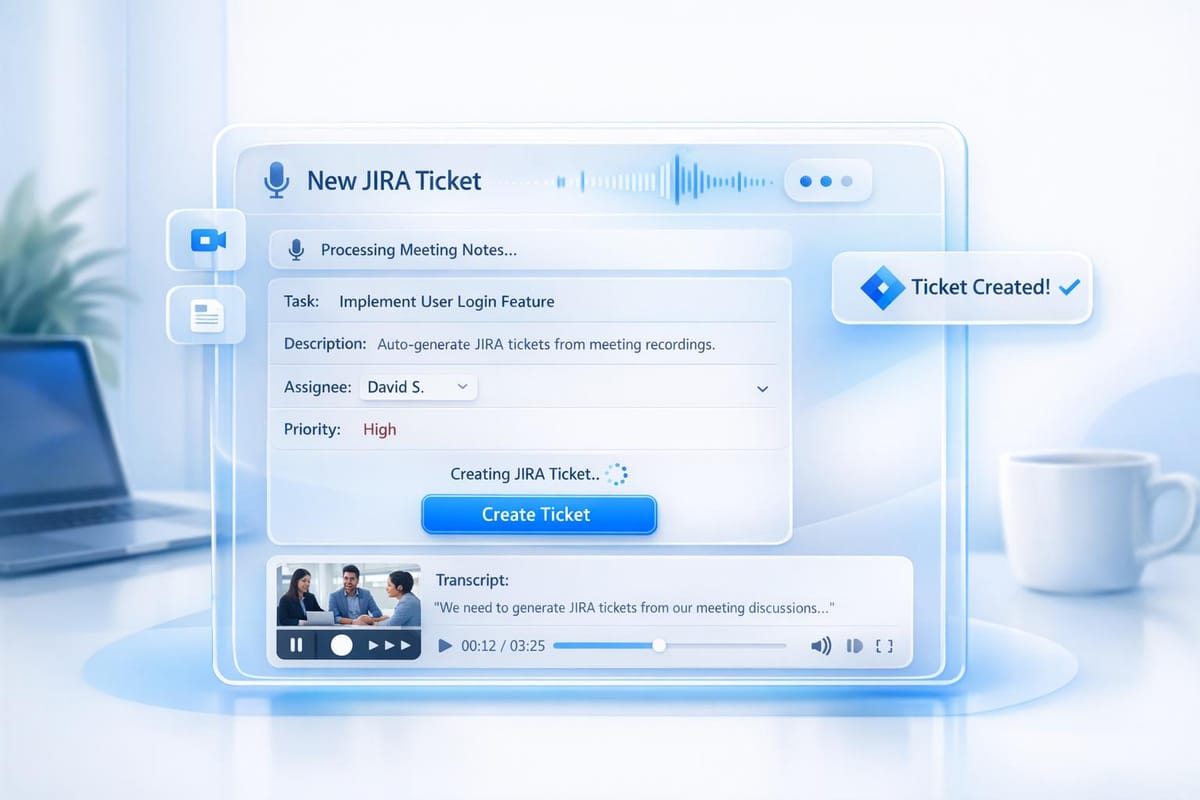
Tired of manually creating JIRA tickets after meetings? Here's the solution: AI-powered tools like Echother can automatically generate detailed JIRA tickets from your meeting recordings. This saves time, reduces errors, and keeps your projects organized.
Key Takeaways:
- Automated Ticket Creation: AI transcribes meetings, identifies tasks, and fills in details like assignees, priorities, and deadlines.
- Real-Time Integration: Works with platforms like Zoom, Google Meet, and Microsoft Teams to process discussions instantly.
- Customizable Fields: Add specific fields like effort estimates or task categories for better workflow alignment.
- Accuracy: Achieves 99% transcription accuracy and 90% task extraction precision.
- Fast Setup: Requires an Echother account, a JIRA Cloud instance, and a connected calendar.
By automating this process, teams can focus on coding instead of administrative tasks. This approach is especially useful for sprint planning, standups, and retrospectives. Below, we’ll break down how it works and how to set it up.

How to Automate JIRA Ticket Creation from Meeting Recordings in 4 Steps
Seamlessly Integrate Jira with Zoom Meetings Using Custom AI Companion
Setting Up for Automated Ticket Generation
To enable automated JIRA ticket generation, you'll need three key components: an Echother account, a JIRA Cloud instance, and a supported meeting platform such as Zoom, Google Meet, Microsoft Teams, or Slack [8]. The setup process involves linking your calendar, installing the Atlassian Connect app, and adjusting the settings for your meeting platform. Below, we’ll break down the requirements, integration steps, and US-specific configurations to make ticket generation as seamless as possible.
Requirements
Before diving into the setup, make sure you have the following:
- An Echother account (a 14-day trial is available).
- Access to a JIRA Cloud instance.
- A connected calendar (Google or Outlook) [8].
The Atlassian Connect app will need read permissions for your JIRA instance to work smoothly [6]. For clear transcriptions during meetings, configure your audio settings appropriately. For example, enable "Join via Computer Audio" and, if you're using Zoom, turn off end-to-end encryption, disable “Only authenticated users can join,” and deactivate the "Waiting Room" feature. Also, allow participants to join early [7].
Once the app is installed, JIRA administrators must manually add two custom fields - "Echoes - Intent" and "Echoes - Effort" - to the JIRA screens [6]. With over 10,000 meetings and more than 1,000 customers relying on Echother, its scalability and reliability are well-proven [8].
Connecting Echother to Your Workflow
To integrate Echother with your JIRA workflow, head to the settings in Echother. Enter your JIRA base URL (e.g., https://yourcompany.atlassian.net) to start the Atlassian Connect installation. This process uses secure OAuth 2.0 authentication. You can also connect GitHub or GitLab repositories to enable repository-aware ticket generation, which automatically applies labels for pull or merge requests [6].
By linking your repositories, Echother can pull context directly from your codebase, creating tickets enriched with technical details. For example, the "Echoes - Effort" field uses a t-shirt size scale to estimate non-coding activities like research or architecture planning that don’t result in GitHub pull requests [6]. If your team manages multiple projects, the Team plan allows for up to five repository connections, while Enterprise customers can enjoy unlimited integrations [8].
Configuring US-Specific Formats
To ensure your setup aligns with US standards, configure date and currency formats in the dashboard. Use MM/DD/YYYY for dates and USD for currency [4][8]. The AI automatically converts relative date phrases like "by next Tuesday" into precise, absolute dates. Structured validation, powered by Pydantic models, ensures fields such as "due_date" and "priority" are formatted correctly [4]. This validation helps prevent issues like failed API calls or tickets with incorrect data.
Recording and Preparing Meeting Data for JIRA Tickets
The quality of your meeting recordings plays a huge role in how accurately Echother can extract action items and generate JIRA tickets. With clear audio, the system can achieve around 90% accuracy in task extraction [5][1]. To help you get the best results, here are some essential recording tips.
Best Practices for Meeting Recordings
Echother’s AI is designed to seamlessly integrate with your Google or Outlook calendar, automatically joining meetings based on the provided link [1][9]. The bot typically joins within minutes once the link is available [9]. To avoid any hiccups, make sure the meeting link is shared early or the session begins when participants are already present [9].
For meetings with password protection, include the password in the calendar event or input it into the Echother dashboard. Incorrect passwords can prevent the bot from connecting [9]. After the meeting ends, ensure all participants leave the session; this triggers the bot to exit and start processing the recording immediately [9]. Using templates like "Sprint planning" or "Team sync" helps the AI better organize tasks in line with your agile workflows [5][9][3].
Extracting Action Items from Transcripts
Clear, direct instructions during meetings significantly improve action item extraction. Avoid vague statements like "someone should handle this." Instead, use specific language, such as: "Sergey, configure the server by Friday" [9]. This kind of clarity ensures Echother identifies the right assignees and deadlines without confusion.
The AI doesn’t just stop at extracting tasks - it also analyzes the broader context of your meeting discussions. This allows it to automatically categorize and prioritize tasks based on what the team talked about [5]. With 99% transcription accuracy, the platform captures everything, from detailed technical requirements to casual commitments that might otherwise be overlooked. These precise callouts lay the groundwork for real-time analysis.
Real-Time Transcription and Analysis with Echother
Once you’ve set up clear recordings and used specific callouts, Echother takes things further with its real-time transcription and analysis capabilities. Unlike tools that only process recordings after the meeting, Echother works during the session [1]. It identifies speakers, timestamps key moments, and extracts action items as the conversation happens. This means you can access auto-generated summaries and tickets just minutes after the meeting wraps up.
The system also cleans up transcripts, removing filler words and silences for a more polished result [2]. Plus, its integration with tools like GitHub and GitLab ensures that tickets are enriched with relevant technical details from your existing codebase. For recurring meetings like sprint ceremonies, you can schedule the AI assistant to join automatically, so you never miss critical data due to manual errors [1].
Generating JIRA Tickets from Meeting Transcripts
After Echother transcribes your meeting, it takes things a step further by transforming the conversation into structured, actionable JIRA tickets. This process relies on a multi-step AI system that summarizes the audio, organizes the insights into JSON for JIRA's API, and validates each ticket using scoring methods and hallucination detection.
AI-Driven Work Item Extraction
The AI dives into the transcript to identify tasks and fill in key JIRA fields. It picks out assignees by name, gauges task priority based on the urgency expressed, and translates relative time references like "by next Friday" into exact calendar dates. This system is smart enough to adapt to the type of meeting - whether it’s a daily standup, sprint planning, or a retrospective - automatically assigning the correct issue type, such as Epic, Story, Bug, or Task.
Customizing JIRA Ticket Templates
Echother maps the meeting insights to standard JIRA fields like summary, description, priority, and assignee. AI "System Prompts" guide this mapping, allowing you to configure defaults. For example, you can set new items to default to a "To Do" status or assign a "Task" type when the exact category isn’t clear. This flexibility ensures the tickets fit seamlessly into your team’s workflow while adhering to US formatting conventions, including standardized date formats.
| JIRA Field | Extraction Method | AI Logic/Instruction |
|---|---|---|
| Summary | Summarization | Generate a concise title based on the action item. |
| Description | Extraction | Create a detailed description reflecting the discussion. |
| Assignee | Named Entity Recognition | Identify the person responsible, as mentioned in the meeting. |
| Due Date | Temporal Normalization | Convert relative dates (e.g., "tomorrow") into exact dates. |
| Priority | Sentiment Analysis | Assess urgency in the discussion to set the priority level. |
You can also include custom fields to better suit your workflow. For instance, Echother supports fields like "Echoes – Intent" for categorizing tasks by their purpose and "Echoes – Effort" (using a t-shirt size scale: S, M, L) to indicate task complexity. Requiring these fields ensures every ticket is well-organized before it’s added to your workflow.
Automated Ticket Creation Workflow
With custom templates in place, Echother streamlines the ticket creation and synchronization process. After the meeting, you can review the suggested tickets in Dry Run mode on the Echother dashboard, making any necessary tweaks before syncing them with JIRA.
Once approved, the tickets are securely synced to your JIRA projects using OAuth 2.0, respecting your existing permissions and user roles. Each ticket links back to the original transcript, making it easy to trace tasks back to the exact conversation. This entire process wraps up in minutes, so your team can jump into action as soon as the meeting concludes.
Optimizing and Scaling Your Workflow
Streamlining Team Processes
Creating clear and consistent processes can significantly improve how your team operates. For instance, standardizing meeting agendas not only keeps discussions focused but also helps Echother's AI understand the context better, leading to more accurate action item extractions. When tackling large projects, breaking them into smaller, manageable tasks makes things more efficient. Using ticket templates with required fields - like assignee and due dates - cuts down on unnecessary follow-ups. Additionally, sticking to consistent terminology for priorities and task types ensures smoother automated extractions. These streamlined practices form the backbone of a reliable quality assurance system, making sure every automated ticket aligns with your team's expectations.
Quality Assurance and Governance
Maintaining high standards requires regular checks and balances. Automated quality audits play a key role in ensuring accuracy and consistency in your workflow. For example, scheduling monthly reviews where team leads evaluate a sample of auto-generated tickets can help identify errors and confirm adherence to team guidelines. A multi-step validation process minimizes the chances of false positives and keeps data clean. Echother's Dry Run mode is especially handy - it allows you to preview and tweak tickets before they go live, catching potential issues like formatting errors or misinterpreted tasks early on. Beyond these checks, tracking performance metrics helps you fine-tune and improve your processes over time.
Measuring Impact and Efficiency
Keeping an eye on key metrics can reveal how well your workflow is performing. For example, the no-edit rate - where 67% of users find auto-generated titles accurate enough without changes[2] - is a great indicator of success. Metrics like sprint velocity and ticket completion rates provide a clear picture of how automation is boosting productivity. Additionally, monitoring token usage and AI costs through the Echother dashboard ensures that your scaling efforts remain cost-effective. Comparing these metrics quarter-over-quarter can highlight the tangible benefits of automation for your team.
Conclusion
Automating JIRA ticket creation changes the game for development teams, cutting down the time spent on manual documentation after standups or sprint planning sessions. With Echother, teams save hours while ensuring accuracy remains intact[1][5].
This time-saving approach leads to smoother sprints and better project delivery. Teams experience an 18% boost in stakeholder engagement thanks to instant context and auto-generated summaries. Plus, workflows are recorded and shared 60% faster, making collaboration more seamless[2].
Echother’s smart, context-aware processing adapts to any meeting format - whether it’s a daily standup or an incident review - ensuring every ticket matches your team’s specific needs[3][1]. Its validation features, including hallucination detection, help eliminate errors and keep your JIRA boards clean and actionable[3]. By integrating this system, you can streamline every step of your development process.
With 96% of users finding AI-powered meeting tools valuable for their workflows and 73% rating them as extremely or very valuable for daily operations[2], the benefits of automation are undeniable. Turning meeting discussions into structured, production-ready tickets with high accuracy simplifies the entire development cycle, aligning every detail with your agile workflow.
Automated ticket generation isn’t just about adopting new tools - it’s about freeing up your team to focus on what truly matters: creating exceptional software. Embrace automation to reclaim valuable coding time and ensure your projects run smoothly from start to finish.
FAQs
How does Echother create accurate JIRA tickets from meeting recordings?
Echother employs a detailed, multi-step AI process to create accurate and comprehensive JIRA tickets from meeting recordings. It starts with transcribing the audio using a high-precision speech model, ensuring the spoken content is captured accurately. Next, an AI-powered summarization process identifies key takeaways, such as tasks and decisions, from the conversation. These insights are then formatted to align with JIRA's structure, ensuring all fields are correctly filled.
To guarantee quality, a validation step checks for errors or missing details, automatically fixing any issues that arise. Even when audio quality is less than ideal, Echother uses rule-based techniques to extract actionable items, ensuring the system remains dependable. This multi-layered process ensures that every ticket is a clear and accurate representation of your meeting's discussions and action points.
How can I set up Echother to automatically create JIRA tickets from meeting recordings?
To automate the creation of JIRA tickets from meeting recordings using Echother, you'll need to follow a few key steps. First, generate the required API credentials: an OpenAI API key for transcription and summarization, and a JIRA API token specific to your project. After that, install the Echother integration package and configure the transcription process to transform meeting audio into text using AI-powered models.
Then, set up a summarization step to pull out actionable insights and format them into a JSON structure that matches JIRA’s ticket requirements. Map key fields like summary, description, and priority to their respective JIRA attributes. Once everything is configured, deploy the workflow so that every new meeting recording automatically triggers the process, resulting in JIRA tickets being created without manual input. Test the entire setup with sample recordings, and make adjustments as needed to ensure the tickets are accurate and fully detailed.
Can I integrate Echother with tools like GitHub or GitLab to improve ticket generation?
Currently, there’s no confirmed information about Echother integrating with tools like GitHub or GitLab to streamline ticket generation. For the latest updates, it's best to explore the Echother platform directly or contact the support team for clarification.